
Customer Service Inquiry Screen
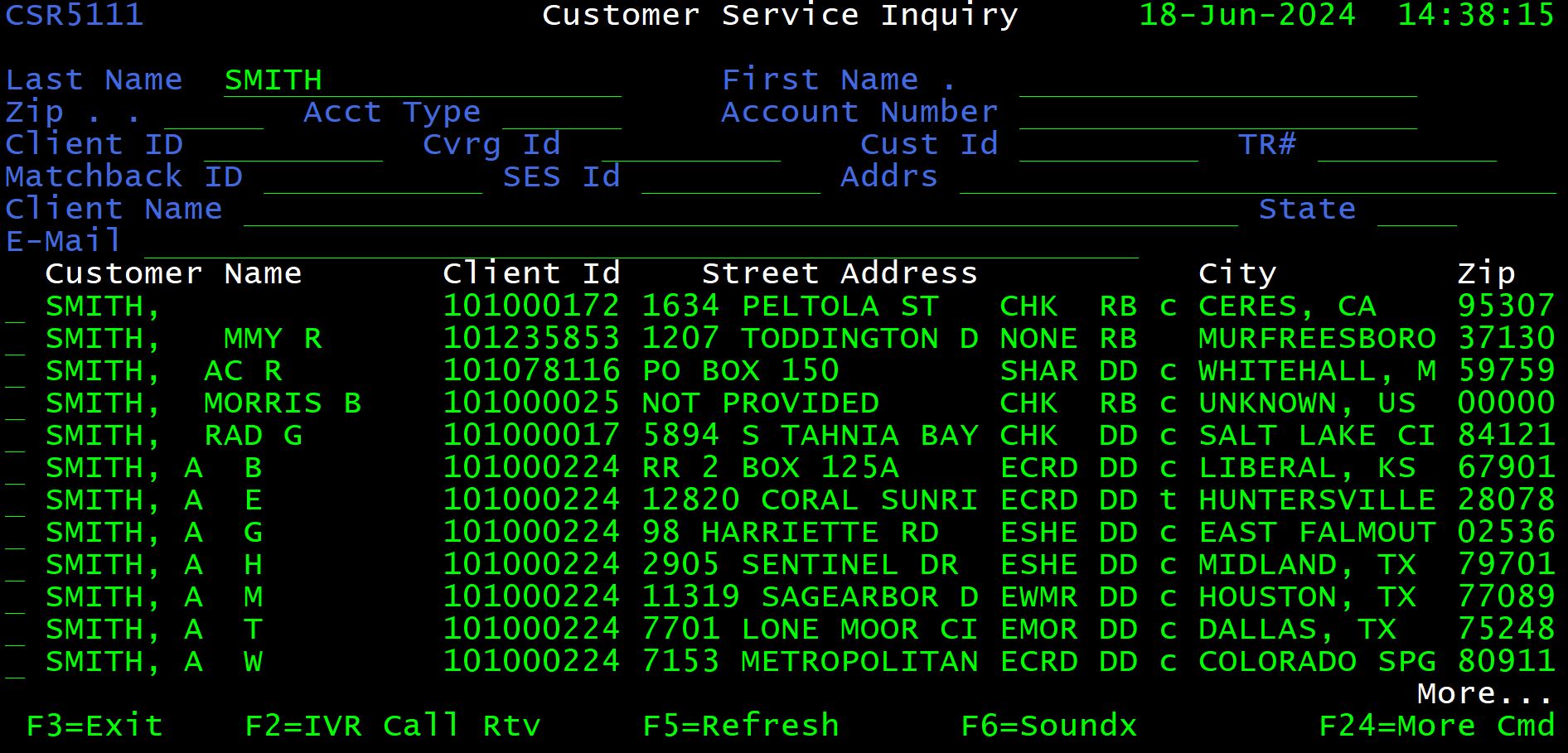
The Customer Service Inquiry Screen is “home base” for call center representatives. The screen is laid out with search criteria fields at the top of the window and search results at the bottom. Each time this screen is loaded or refreshed, the search criteria fields are cleared and all Artemis records are displayed (sorted alphabetically by last name).
The <Page Up> and <Page Dn> keys cycle through search results to display the next series of results in a sequence.

Search Criteria (Fields)
When completing these searches, avoid the use of the middle initial as it interferes with getting accurate results.
Users are able to conduct the following searches in ARTEMIS.
| Search Criteria | Sample Data | Notes |
| LAST NAME | SAMPLE | Must always be used; Use entire LAST NAME if known or a partial last name |
| FIRST NAME | JOHN | Use entire FIRST NAME if known or a partial first name |
| ZIP CODE | 90028 | 00001 for international addresses |
| ACCOUNT TYPE | CHK, ECHK, SAV | |
| ACCOUNT NUMBER | 103956884 | Works in some cases |
| COVERAGE ID | 704989652 | Overrides all search criteria |
| CUSTOMER ID | 95226901 | The caller may provide an 8-digit number. |
| CLIENT ID | 101000224 | <F4> to retrieve by Client Name |
| TRANSIT ROUTING NUMBER | 64844267 | |
| MATCHBACK ID | (not utilized by contact center) | |
| SES ID | (not utilized by contact center) | |
| ADDRESS | 123 | Use the house number |
| CLIENT NAME | Pentagon | Financial institution |
| STATE | FL | State abbreviation |
| EMAIL ADDRESS | email@gmail.com | Primary insured’s email address |
Preferred Search Methods
-
- COVERAGE ID (FROM CORRESPONDENCE)
- LAST NAME or partial last name + ZIP CODE
- LAST NAME + FIRST NAME + ZIP CODE
- Email address of primary insured
Artemis houses over 80 million coverage records. Using these search methods will help reduce search time.
If Unable to Locate a Record
If unable to find a coverage record, be sure to use alternative options for the following fields:
- First name
- Last name
- Any other name / joint account holders
- Full address
- Previous address / PO Box
- Name of FI / amount of charge
- Coverage ID / billing description
- What prompted call (letter, etc.)
- Email address of primary insured
Search Results
To search for a coverage record, obtain search criteria (usually the Last Name and Zip Code of the Primary Insured) and enter into the respective field at the top of the Customer Service Inquiry Screen. Press <ENTER> to begin the search.
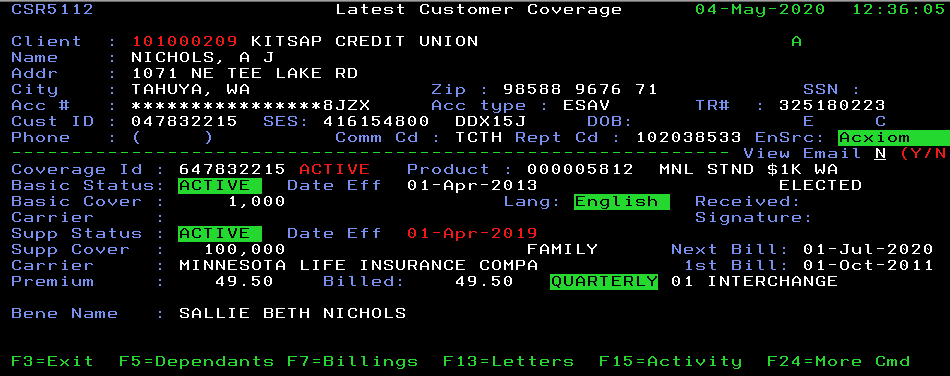
If Coverage ID was used as search criteria, the Latest Customer Coverage Screen is displayed.
For all other search criteria, search results are displayed in a tabular format on the Customer Service Inquiry Screen with the record(s) closest matching the criteria presented at the top of the search results.
Results (coverage records) from searches are displayed in the lower area of the Customer Service Inquiry screen. Note that coverage records are sorted by search criteria; however, neighboring records are displayed following the search results.
When Coverage ID is used in combination with other search criteria, the search is performed on Coverage ID alone; additional search criteria are ignored.
From left to right, the following fields are displayed as columns in the search results:
| Field Name | Format |
| Customer Name | Sample, John Q. |
| Client ID | 101000031 |
| Street Address | 123 Main Street Apt. C |
| Account Type | ECHK / SAV / CCRD |
| See below for a complete list of account types | |
| Product Indicator | DD – AD&D HP – HAP RA – Recuperative Care TM – Term/Life MU – multiple products |
| Coverage Indicator | $ – Supplemental |
| t – Basic Takeover | |
| T – Supplemental Takeover | |
| c – cancelled | |
| blank – Basic only | |
| City | Las Vegas, NV |
| Zip Code | 90028 |
Display Coverage
Once the appropriate coverage record has been identified in the search results, place any character in the box to the left of the Customer Name field to display the customer coverage information. Press <Enter> to proceed. The Latest Customer Coverage screen is displayed.
To view the Latest Customer Coverage screen for multiple coverage records in series, place any character in the box to the left for all desired records. Press <Enter> to proceed. The Latest Customer Coverage screen is displayed for the first coverage record selected. Press <Enter> to view the next record selected, and so on.
Coverage Details
The Latest Customer Coverage screen is displayed when a coverage record is selected from the Customer Service Inquiry screen. This screen is the most common screen utilized when discussing coverage with the customer. It is broken down into two main sections, Customer Information (upper section) and Coverage Information (lower section) (Fig. N)
Customer Information
| Field | Description | Format |
| Date / Time | Current date and time in Central Standard Time (Nashville, TN) | 5/4/2020 12:36 |
| Client ID / Client Name | Client ID and Name of Client as listed in Master File | 101000209 Kitsap Credit Union |
| Name | Full name of the Primary Insured | NICHOLS, A J |
| Address | Street address (mailing address) | 1071 NE Tee Lake Rd |
| City (+State) | City , State (mailing address) | Tahuya, WA |
| Zip | Zip code | 98588 |
| Acct# | Account number for coverage | ***********8JZX |
| Account numbers are encrypted to comply with Privacy Laws. Do not provide to caller. | ||
| Acct Type | Type of account (Checking, Share Draft, etc.) | ESAV |
| TR# | Transit Routing number for financial institution | 325180223 |
| Customer ID | Unique identifier for customer within the same FI | 047832215 |
| SES ID (+Spoken Key) | Solicitation Event Segment ID and Spoken Key (match-back) | 416154800 DDX15J |
| DOB | Primary Insured’s date of birth | 12-Jun-70 |
| Phone | Contact phone number | (615) 987-0009 |
Account Types
Users will see many different account types in the system. Some of the most common are outlined below:
| Account Type | Description | Institution |
| CHK | Checking | Bank |
| ECHK | Encrypted Checking | Bank |
| SAV | Savings | Bank |
| ESAV | Encrypted Savings | Bank |
| S/DR | Share Draft (Checking) | Credit Union |
| ES/DR | Encrypted Share Draft | Credit Union |
| SHAR | Share (Savings) | Credit Union |
| ESHAR | Encrypted Share | Credit Union |
| CCRD | Credit Card | Other |
| ECRD | Encrypted Credit Card | Other |
| MORT | Mortgage | Other |
| EMORT | Encrypted Mortgage | Other |
| RRCD | Retail Credit Card | Other |
| ERCRD | Encrypted Retail Credit Card | Other |
Coverage Information
| Field | Description | Format |
| Coverage ID | Unique identifier specific to the coverage record; | 634408836 |
| 672204685 | ||
| Product Version | Product version number and short description | 000000150 APP $200K TM 60 |
| 000000148 Kev Hart $2000-BK | ||
| Basic Status | Current status of the basic coverage | ACTIVE EXPIRED CANCEL |
| Date Eff | Effective Date of the latest change for the basic coverage | 1-Feb-89 |
| Join Date | ||
| Until | Date on which the basic coverage expired (will expire) | 1-Aug-05 |
| Basic Cover | Amount of basic coverage | 1,000 |
| Lang | Language version of enrollment form | English |
| Received | Not currently utilized | |
| Carrier (Basic) | Carrier underwriting the basic coverage | (usually blank) |
| Signature | Not currently utilized | |
| Supp Status | Current status of the supplemental coverage | ACTIVE CANCEL |
| Date Eff | Effective Date of latest change for supplemental coverage | 1-Feb-89 |
| Until | Date on which the supplemental coverage expired (will expire) | 1-Oct-97 |
| Supp Cover | Amount of supplemental coverage and type | 40,000 FAMILY 200 per day FAMILY |
| Next Bill | Next date on which the coverage will bill. | 1-Nov-95 |
| Carrier (Supp) | Carrier underwriting the supplemental coverage | FORTIS (FORTIS BENEFITS INSURA |
| First Bill | Date on which the coverage billed (will bill) for the first time. | 1-Feb-94 |
| Premium | Current monthly premium amount | 7.5 |
| Billed | Total premium due at billing, frequency, cycle and method | 22.5 |
| Bill Frequency | Frequency of billing for supplemental coverage | QUARTERLY; MONTHLY; ANNUAL, BI-ANNUAL |
Coverage and Inactive Client Status
When a client no longer participates in our program, they become an Inactive Client. Inactive clients can be identified in one of three ways:
-
- The letter “I” will appear highlighted in the upper right hand of the Latest Customer Coverage Screen
- Coverage status is ‘Active’, however the Next Bill Date is in the past, indicating coverage is no longer billing
- A client flash (<F16>) may indicate the client no longer participates in our program and may include instructions regarding the new administrator
Note: The system will reflect the status of the coverage at the time that coverage was transferred to the new administrator. If coverage is active when the client goes inactive, the coverage status will appear active, regardless of the current status of the coverage with the new administrator.
Archived Coverage Records
In 1997, an effort began to store or “archive” older coverage records. All coverage records without a customer contact prior to 1997 were removed from the ARTEMIS database and archived. This process was repeated again in 2007 with an enhancement to the archive process allowing view-only access to the Latest Customer Coverage Screen.
Currently, all coverage records created on or after January 1, 2001 are available to access, regardless of contact history. The archival process now runs twice each year, in January and June.
If a coverage record has been archived, the following message will be displayed at the bottom of the Latest Customer Coverage Screen when attempting to locate coverage:
‘Data for this coverage has been archived. Request details from Webscreen’