Information from a Frontline Agent BEFORE You Speak to a Customer
- Coverage ID
- Customer’s name
- Whether or not verification was completed
- Whether or not customer policy summary was read to the customer
- Reason customer is being transferred so the customer does not have to repeat themselves
Suggested scripting when customer is transferred to you:
“Hi (customer’s name), this is (agent name), a (supervisor / manager) and I’m here to help you. I understand you are calling about (reason). Let’s take care of this for you.”
Delete a Letter Requested by an Agent
As a Tier II agent, you can delete a letter which was inadvertently requested.
A letter can ONLY be deleted the SAME DAY it was requested.
Steps
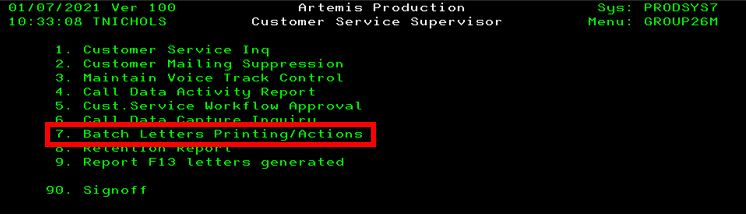
- Select Batch Letters Printing / Actions from the main menu
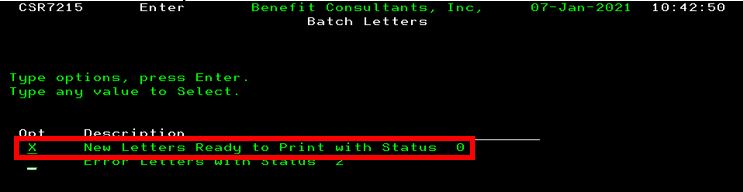
- Select New Letters Ready for Print with Status
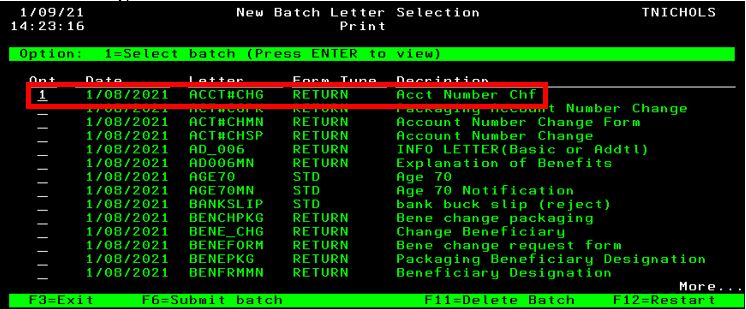
- Select the letter type which needs to be deleted
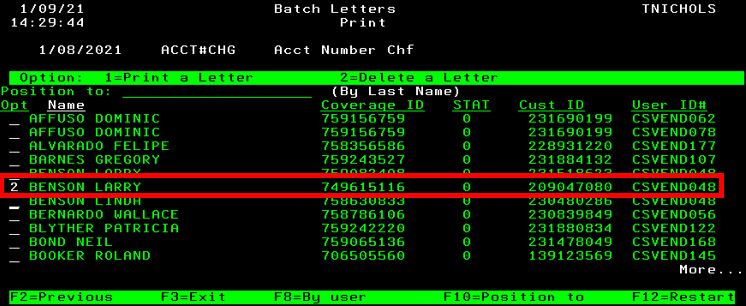
- Enter 2 next to the coverage ID in which the letter needs to be deleted
- Press enter to confirm
It will be noted in the comment screen that the letter was deleted.
Select “Batch Letters Printing / Actions” from the main menu
Select “New Letters Ready for Print with Status”
Select the letter type which needs to be deleted
Enter 2 next to the coverage ID in which the letter needs to be deleted then press enter to confirm
Enroll in Complimentary Coverage
You can enroll someone in AD&D complimentary coverage. [Enrolling someone in AD&D supplementary coverage, HAP, Recuperative Care, or any other product is not available at this time.]
“Can you provide me the code located toward the upper right hand corner of the activation form you received – the code that usually starts with an H or J?”
Steps
Spoken Key IS Available
- F19 from the Customer Service Inquiry Screen
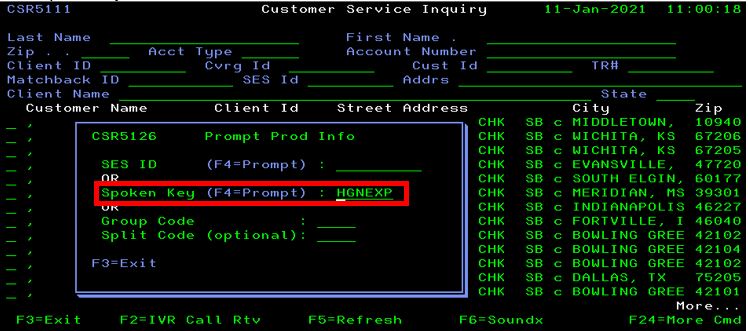
- Enter spoken key
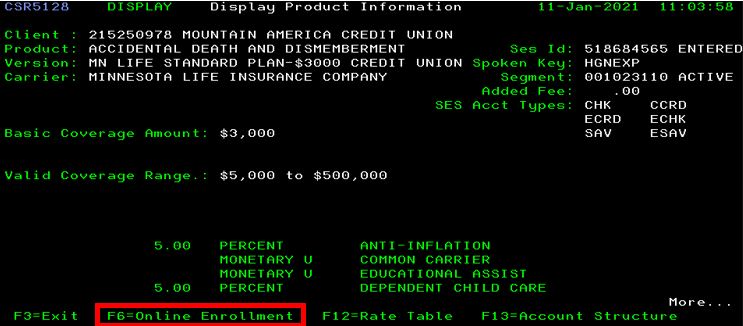
- Select F6 – Online Enrollment
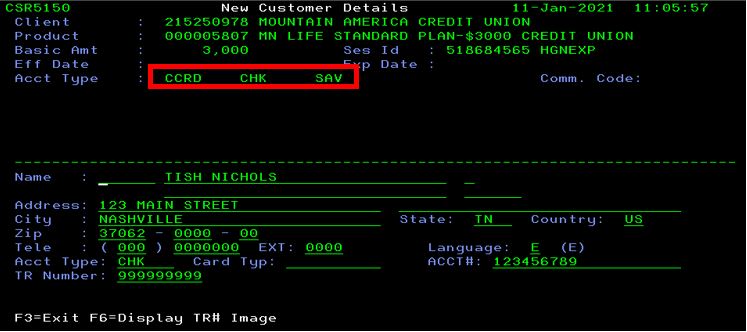
- Enter caller’s name, street address, city, state, zip, phone number
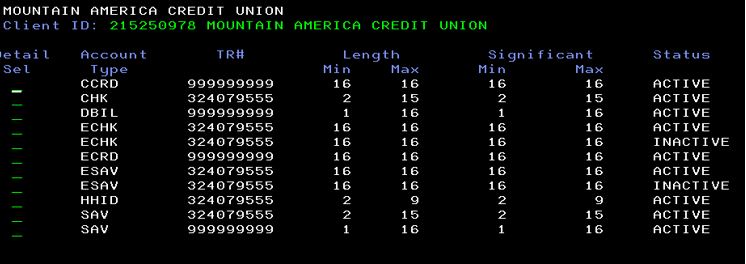
- Enter the account type (reference the account types available for selection)
-
- If CCRD (credit card), the “Card Typ” options are MASTERCARD or VISA (not Discover or American Express)
- Enter the account number
- Enter the TR # by selecting F6 (not needed if it’s a credit card)
- Put cursor next to the name field then press enter to confirm
Enter spoken key on F19 screen
Select F6 – Online Enrollment
Enter caller’s name, street address, city, state, zip, phone number
Enter the account type (reference the account types available for selection)
- If CCRD (credit card), the “Card Typ” options are MASTERCARD or VISA (not Discover or American Express)
- Enter the account number
- Enter the TR # by selecting F6 (not needed if it’s a credit card)
Put cursor next to the name field then press enter to confirm
Steps
Spoken Key IS NOT Available
- F14 from the Customer Service Inquiry Screen
- Enter the caller’s financial institution
- Pick the financial institution which has an active campaign status (sometimes listed in red)
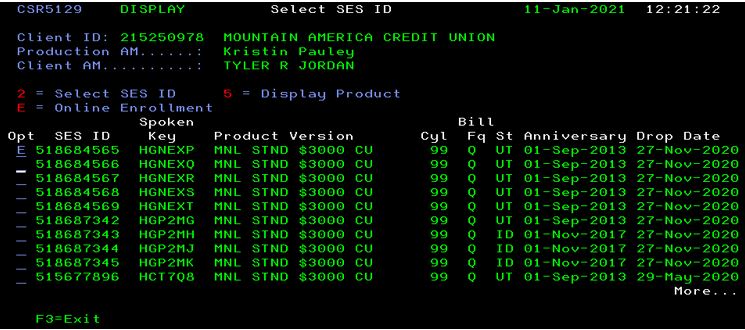
- Look for the most recent AD&D drop date and enter E – Online Enrollment
- If multiple states are listed and the caller does not have the spoken key, ask which state they live in
- Select US if the caller’s state is not available
- If multiple states are listed and the caller does not have the spoken key, ask which state they live in
Enter the caller’s financial institution
- Pick the financial institution which has an active campaign status (sometimes listed in red)
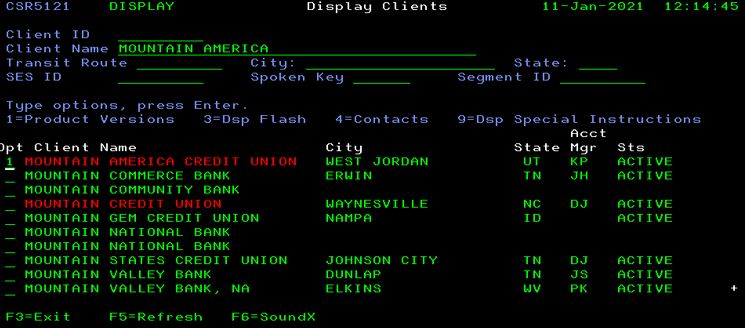
Look for the most recent AD&D drop date and enter E – Online Enrollment
- If multiple states are listed and the caller does not have the spoken key, ask which state they live in
- Select US if the caller’s state is not available
After our new customer has been enrolled in complimentary AD&D coverage, please provide the customer with the following:
- Their coverage ID
- Insurance document will arrive within 10 to 15 business days
- A beneficiary form and a from to have the option to increase coverage is included with the insurance documents (there is no need to send these forms to the customer).
Assist with Locating a Customer in Artemis
Tips
- Partial name search
- Previous address
- Narrow a search by entering:
- House number
- State
- Financial institution
- Ask caller to look at billing statement descriptor – Did he / she call the phone number on the billing descriptor?
- If the caller cannot be located in Artemis, please escalate to the Executive Response Team
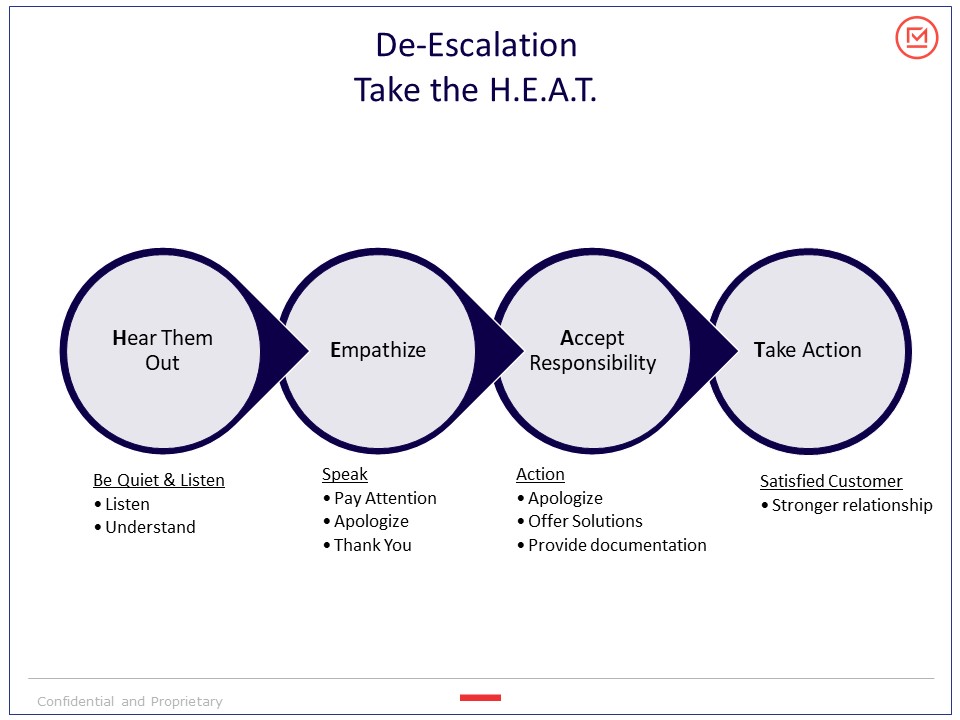
De-Escalation Technique – Taking the H.E.A.T.