
Registration Steps
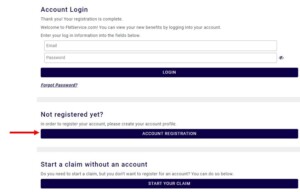
Step 1: Click Account Registration on home page
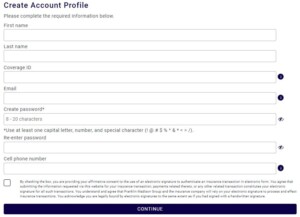
Step 2: Enter requested information
- First name must match coverage screen
- Last name must match coverage screen
- Middle name or initial is not necessary (In rare circumstances, the middle initial sometimes is in the first name field; this will cause the customer to see an error)
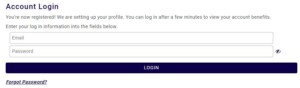
- Email entered will be the username
- Will automatically appear in Artemis
- If you update the customers email address in Artemis, this will become their new username and will update automatically on fmservice.com
- Password entered needs to match requirements (Capital letter, number, and special character such as #, @, $, %, ^, &, etc.)
- Cell phone (not landline) is required for 2-step authentication
- If you update the customers phone number in Artemis, it will take about 15 minutes for the phone number to update on fmservice.com
Step 3: Click continue
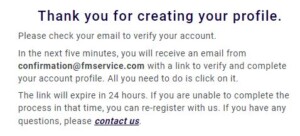
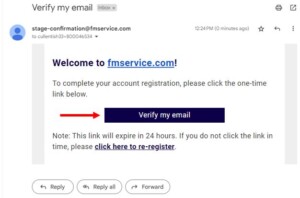
Step 4: Customer will receive an email asking to verify their email address
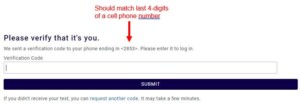
Step 5: Customer will be asked to enter the 6-digit code which will texted to the cell phone number they registered
- If the customer did not receive the text or took too long to enter the code, the customer can request another code
- Confirm with customer that a cell phone number was used
If an email address and phone number are not present in Artemis, the customer has not completed registration.
Troubleshooting Registration Setup
- Not receiving the authentication code text? Please confirm that you do not have any service turned on that blocks texts from unknown numbers. For example, T-Mobile provides this as a service to its cell customers.
- Did you enter your first name as (check coverage screen)? It must match coverage screen
- Did you enter your last name as (check coverage screen)? It must match coverage screen
- No middle name or initial is necessary
- Did you enter a cell phone number? This may be a reason for not receiving a text message
- Are the 4-digits shown the last four of your cell phone number?
- Try clicking request another code
- Did you follow the password requirements?
- Capital letter, number, and special character #, @, $, %, ^, &
- Did you enter the coverage ID as (check coverage screen)?