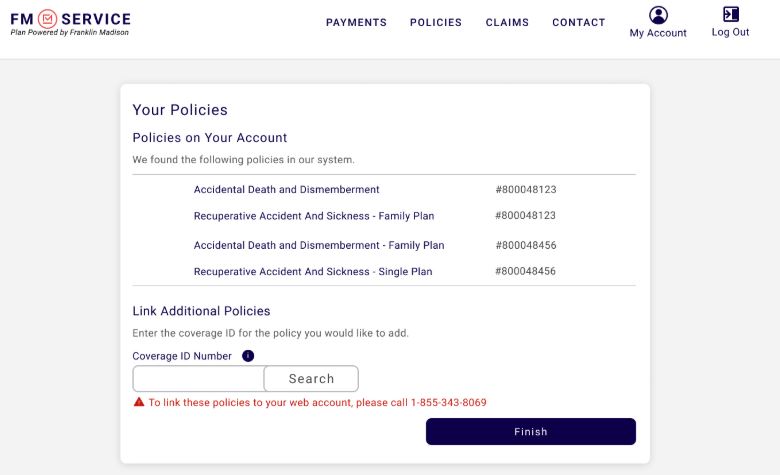
Adding Policies
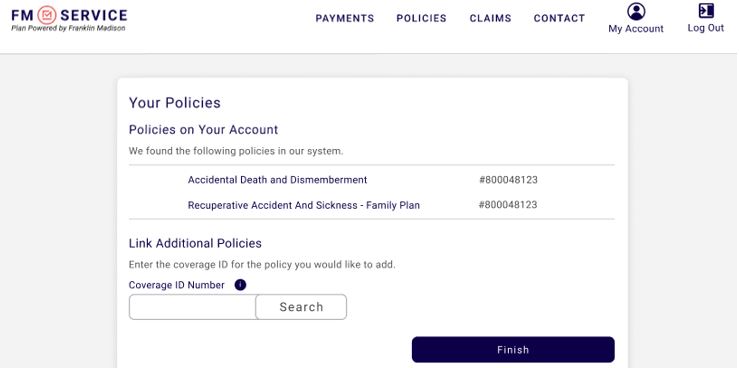
- When a customer logs in for the first time on fmservice.com, they will see this screen. The customer can add a Coverage ID and click search. If the customer does not have a coverage ID they wish to add, the customer can go ahead and click “Finish.”
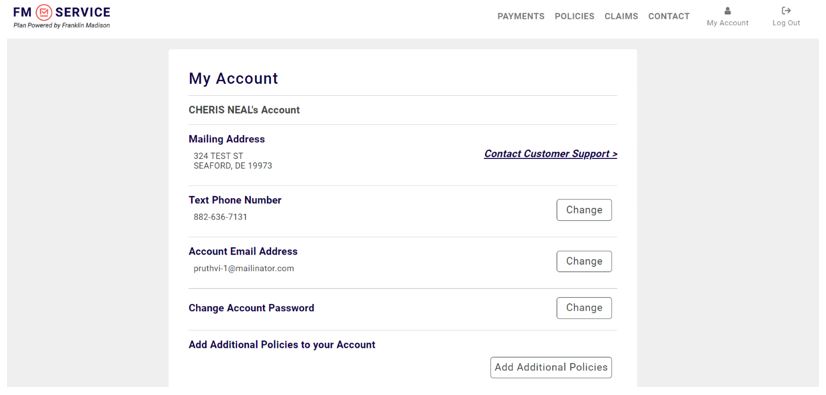
- Another way customers can add policies is to click the “My Account” icon at the top right corner of the screen, then select “Add Additional Policies.”
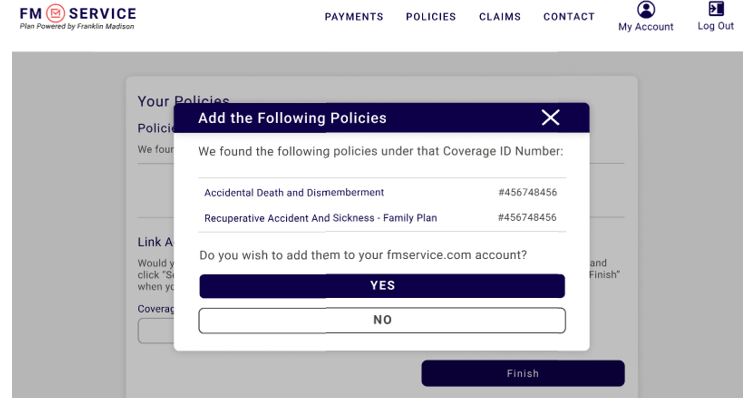
- Once the customer enters the Coverage ID, a pop-up screen will populate so the customer can confirm they would like to add the policy to their fmservice.com account.
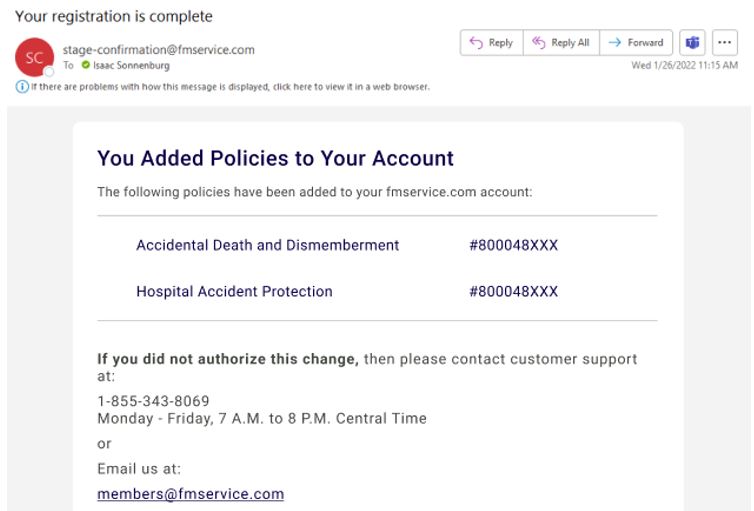
- The customer will receive an email confirmation that the policies have been added.
- If there is a problem with adding policies to their fmservice.com account, the customer will receive an error message and will be asked to call us. The issue could be that the customer’s addresses do not match. Complete verification on all coverages and change the address, if necessary, so that the information matches across all coverages. This should fix the issue.